Andriod Permissions

This part deals with getting a access to a memory, location and some other parts by requesting a permission from the user. I learnt how to show when one accepts, deny or deny and never ask again options.
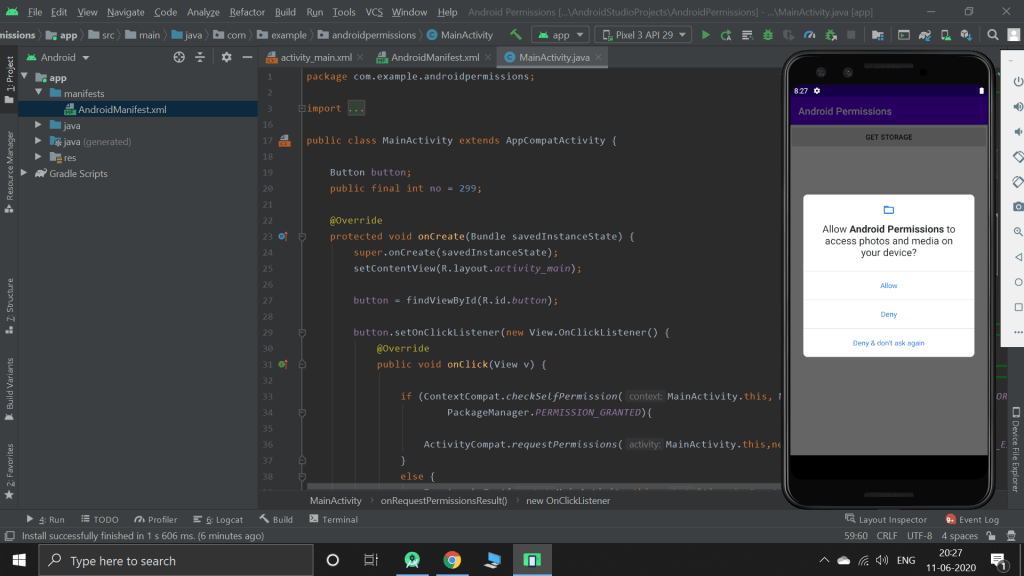
If a person deny’s, I made an alert dialog to show the usage of the permission to the user by showing a pop-up. If a person clicks Deny and never ask again, then the permission will not be show further even if the user clicks on the button.
SQLite Database – Day 2

Yesterday, I completed the topic but I was not sure in it. So today, I practiced by creating a app that collects info and stores in the local memory.

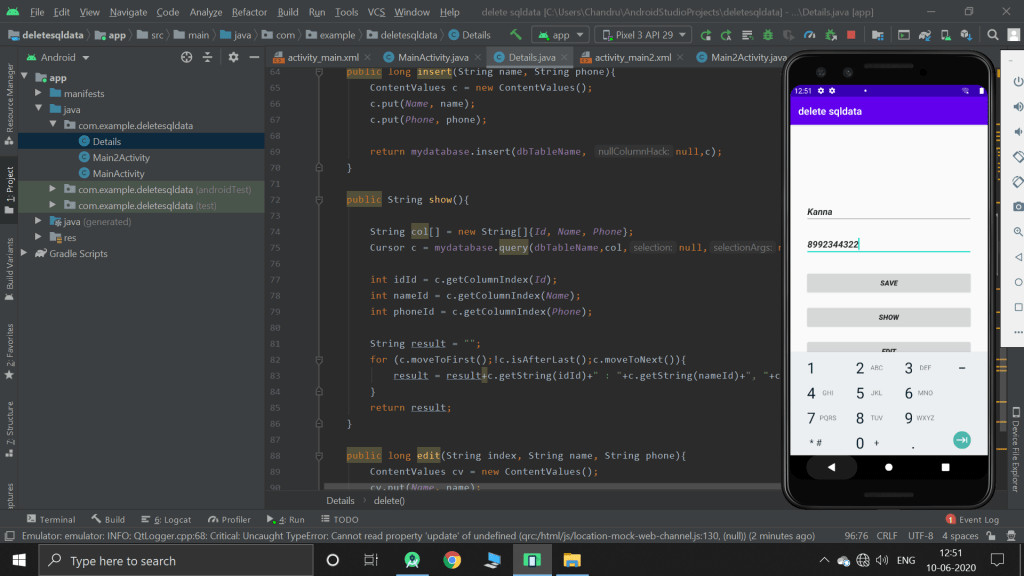
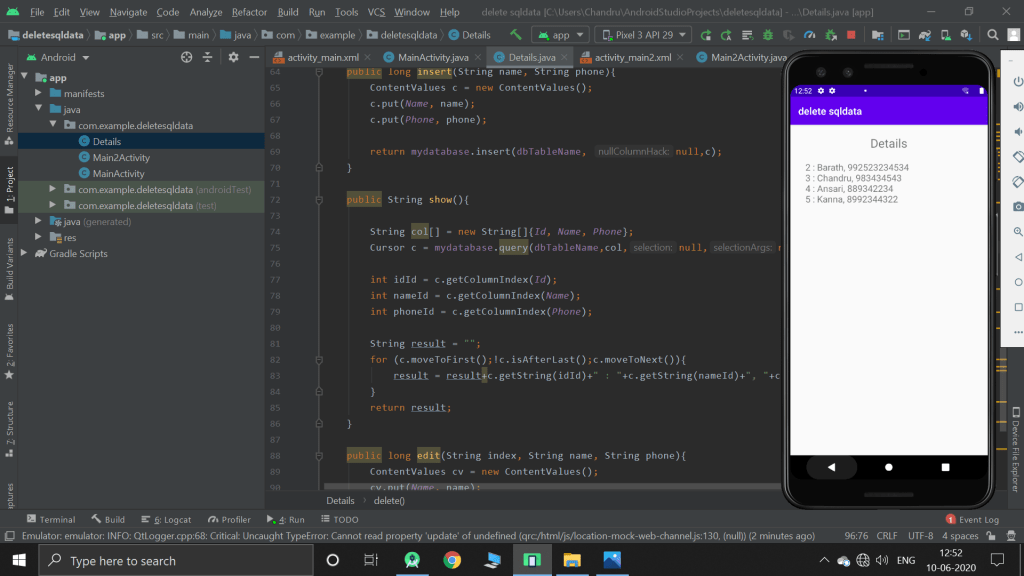
This app has four functionalities save, display, edit and delete a particular record. For storing, we use the SQLite database which is pre-installed in the android studio.

For edit and delete methods, i have manually set the index on which record has to be deleted or updated.

SQLite Database – Day 1

Today, I was working with a very important topic, which is database. I completed the topic but it is a very big topic to remember. I created the app as following the instructor. It took me more than 3 hours. The app collects name and phone number and stores it in database. We can perform edit and delete operation in it. Although I completed, I’m not confident with all the methods. So I need more practice in this topic.

Async Task

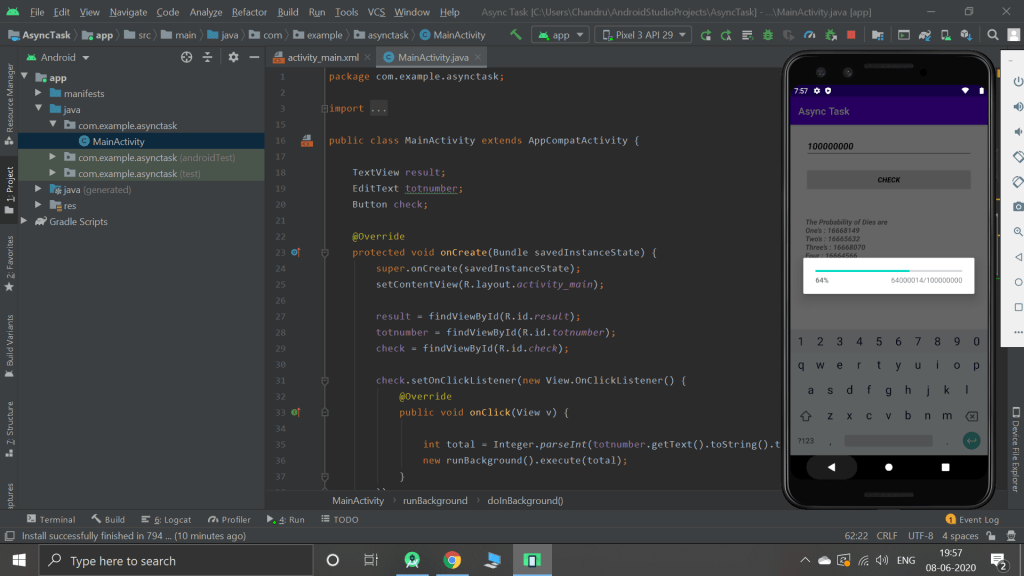
This method is use to run a specific code at the background which has loop or some complicated statements. This will show the pop that how many iterations have been completed so that the user can be notified.

So I created a app which collects the total number of dies rotated and the probability for each number is displayed. In case of very few number of dies rotated, async task is not useful. But in case of large numbers, it is recommended.

As the above picture, number of process executed will be shown to the user. Without this method, the number of process executed will not be shown to the user. As it takes long time, the user may close the app without getting the result.

File

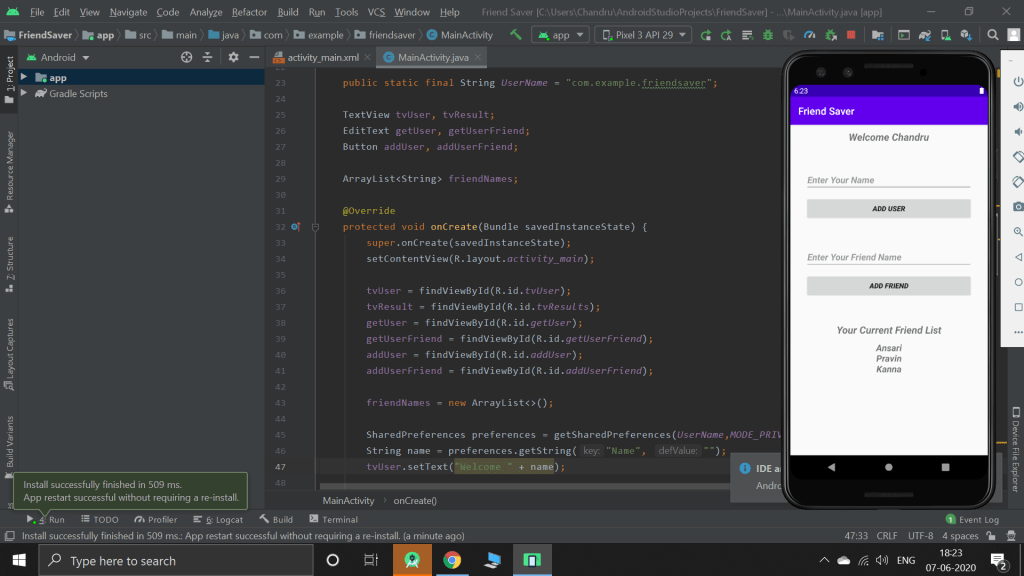
That’s it, Since the last few days I was not able to go along with the android development course. So then I today started the with the part which I left half of the topic. I understood the topic and I created a app which collects a user’s friend list and stored it in file.

The first part collects the name of the user. I stores the name with the help of the shared preferences as the user name is simply just one, so we can use it.

Then a particular user may have many friends which may not applicable with the shared preferences. So we user the files concept. So even when the phone is restarted or even the RAM memory is cleared, the data will not be erased

\

Storing as a Text file

Today, I created an app, which collects name and surname from the user and we can store them as a file and retrieve when needed. This topic included fileinput and output stream.

To store it, we use FileOutputStream “name” = openFileOutput(“Filename”, access_mode); . After creating the file, to open it, we want to use OutputStreamWriter by passing the “name” of the path we created.

To retrieve the data, We use BufferedReader. To check the existance of file we use. File file = getApplicationContext().getFileStreamPath(“Filename”);

Then after reading the file, In order to get a specific data, we use StringTokenizer. This requires two arguements, one is the complete string which holds it and the next is on which parameter the data has to be seperated. For example the first line contains Chandru,Ravi. the comma(,) is the one which seperates it.

Shared Preferences

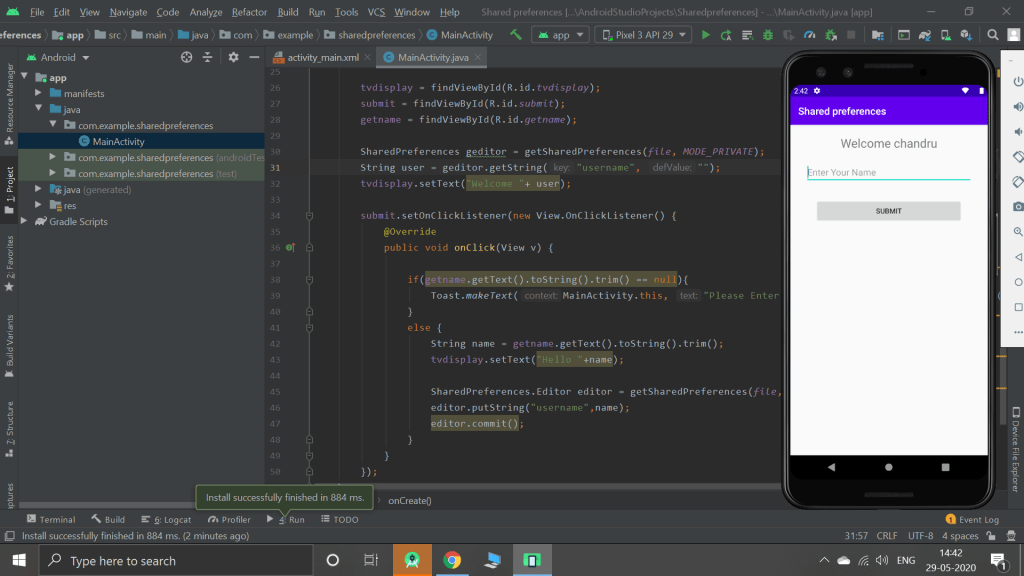
This is the first topic of storing the data as a file. This method is used to store simple data and we can retrieve the data easily.

Till now we are working with the data, which will be lost when the RAM memory is cleaned. But this method, when user enters the name and stores it, it will be saved in a file and even the restarted the data will not be erased.

Toast

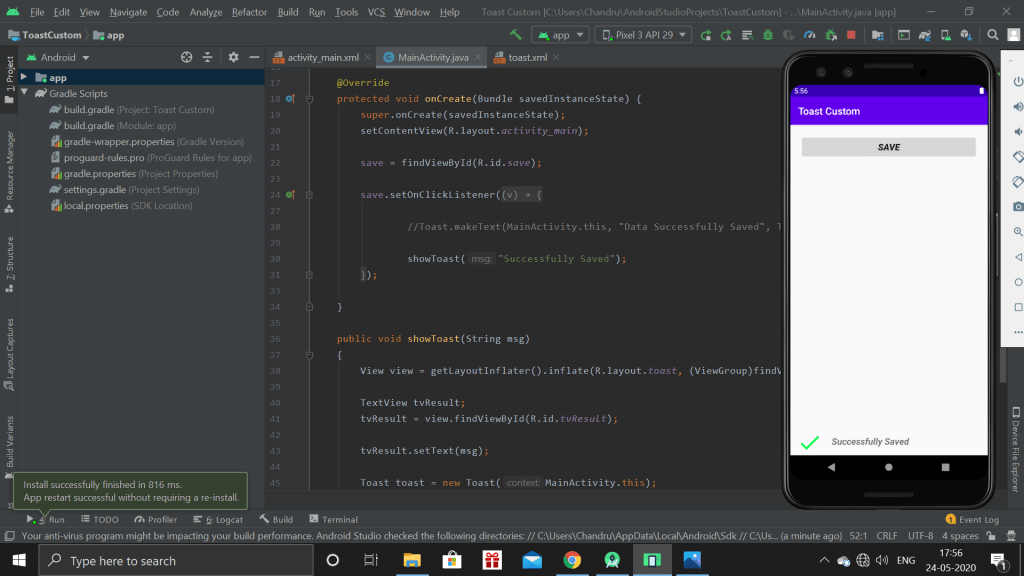
Today, I was working on both topics, the first one is toast. Toast is simply a quick message about the activity such as success, submitted and like that.

There is two types in which toast can be made. The one is a in built one and the other is customizable. I worked on the both.

Action Block

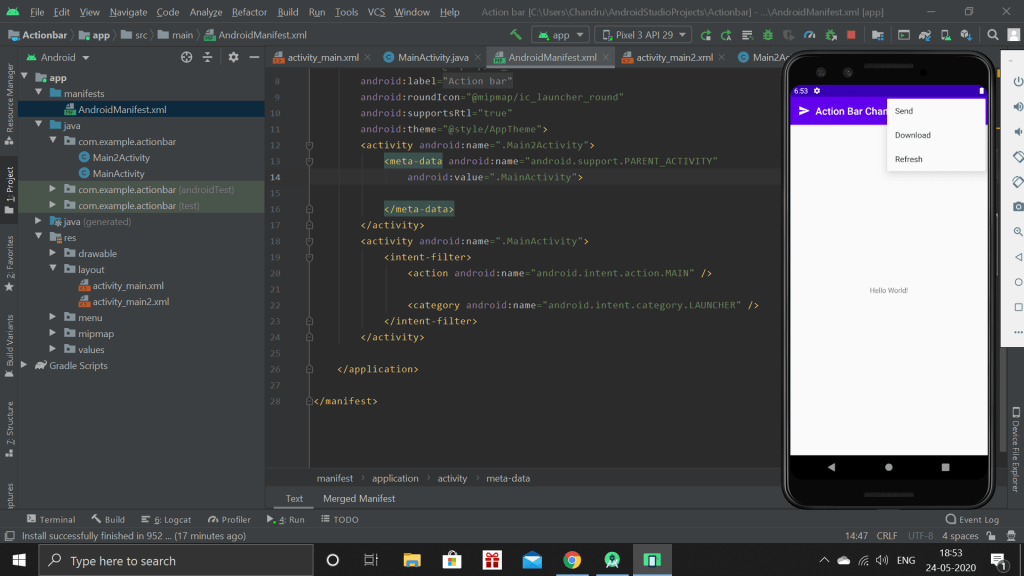
The top most part of the app is called as the Action block. In this topic, I learnt how to add button with icon and how to move from one activity to other.

With the help of this, we can quickly switch to any activity. Then when we switched to other activity and if we want to come back to the previous activity, we just want to add “android.support,PARENT_ACTIVITY”.